Copilot Is PowerPoint-Ready. Is Your Template?
Teams can now create presentations much more efficiently with AI. Whether the result fits the brand depends on the template. Where to find the cause when Copilot misses the mark despite the Brand Kit.

Off-brand despite the Brand Kit: the typical symptom
The licences have been bought and the Brand Kit is set up. Someone from the brand team has been given the Brand Manager role, the template sits in the SharePoint library, and perhaps a dedicated agent has even been built. Then comes the first serious test.
The result is disappointing. Three parallel points end up on the agenda slide, the title font is wrong, and loose text boxes sit in the middle of the slide. Another attempt brings different errors, but rarely a slide anyone would send out as it is.
The obvious reaction is to keep adjusting the settings. In our reviews, the cause usually lies elsewhere. The effort went into the tenant, the problem sits in the file.
How Copilot reads a template
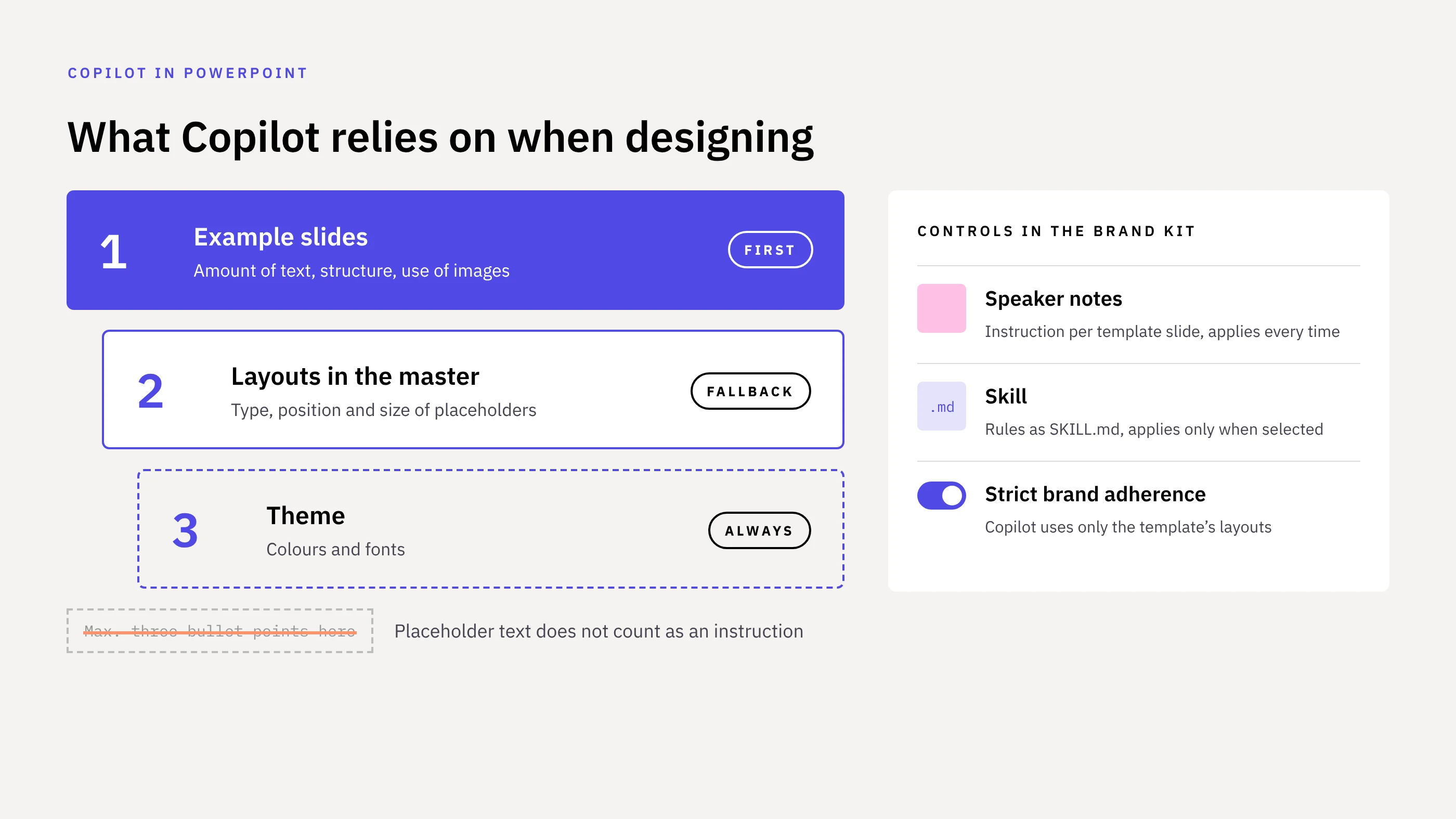
Microsoft describes quite precisely what Copilot relies on when it designs slides. First come the example slides in the template. From them, Copilot learns how much text belongs on a slide, how it is structured and when an image is added.
Only then does Copilot turn to the layouts in the slide master and read the type, position and size of the placeholders there. Colours and fonts come from the theme. If there are too few example slides, Copilot falls back on the master, which according to Microsoft gives weaker results.
A common misconception concerns placeholder text. Many templates contain hints such as “three bullet points at most”. Copilot does not treat this text as an instruction. It only serves as formatting.
There are two other places for instructions. Copilot reads the speaker notes of the template slides every time it creates a presentation; Microsoft gives examples such as “Keep the text minimal”. Since the end of September 2026, Brand Managers can also upload skills to the Brand Kit, Markdown files with rules for how to proceed. A skill only takes effect, however, if someone selects it when creating a presentation.
Many people overlook one setting in the Brand Kit: Strict brand adherence. When it is on, Copilot uses only the template’s layouts and adds no placeholders of its own. When it is off, Copilot has more freedom in the design and applies only the brand’s colours, fonts and assets. Only the owner and the Brand Managers of the Brand Kit can change it.
Five causes in the file
When we review templates for how well they work with Copilot, we keep finding the same patterns. None of them is visible in a finished presentation. All of them sit in the structure of the file.
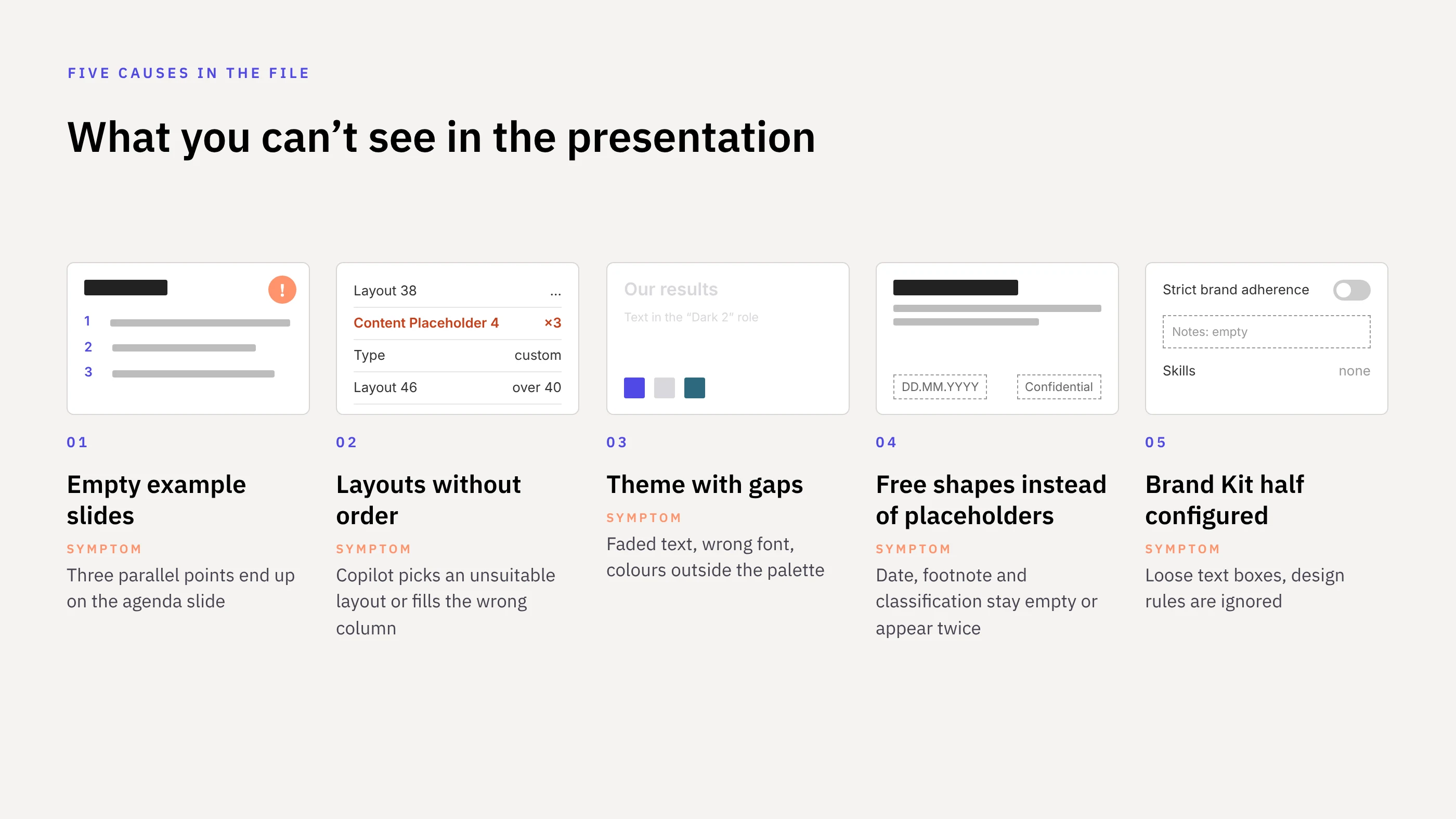
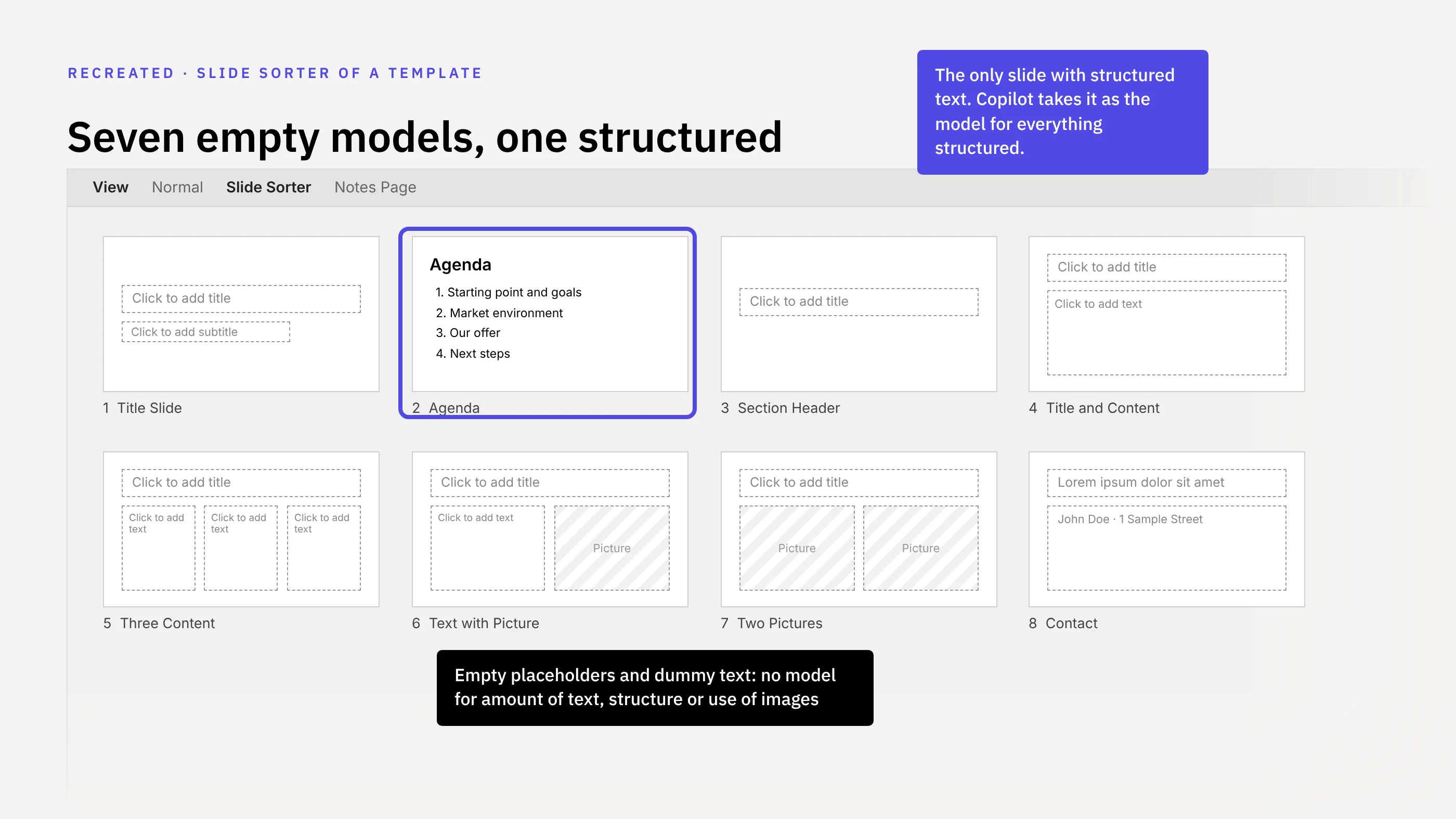
Empty example slides. Many templates contain an example slide for every layout, but with empty placeholders or dummy text. Copilot cannot learn anything from these. If the agenda is the only slide with structured text, it becomes the model for everything that is structured. Copilot treats dummy text and sample names as content, and they can end up in generated slides.
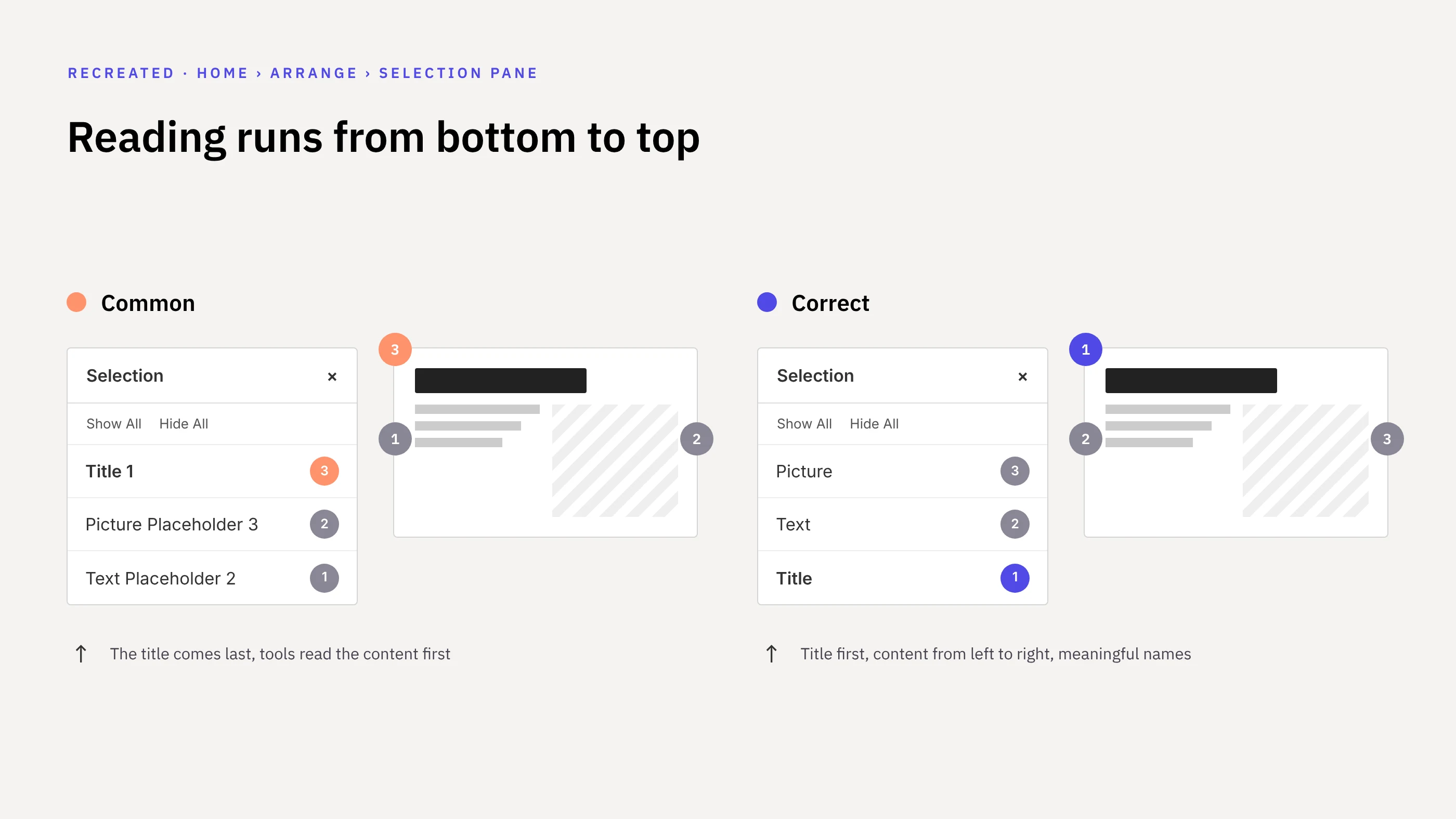
Layouts without order. Microsoft recommends a single master with no more than 40 layouts. Templates that have grown over time often exceed this. Frequently no layout has a layout type, placeholders within the same layout share the same name, and the title comes late in the reading order. People notice none of this. Tools and screen readers do.
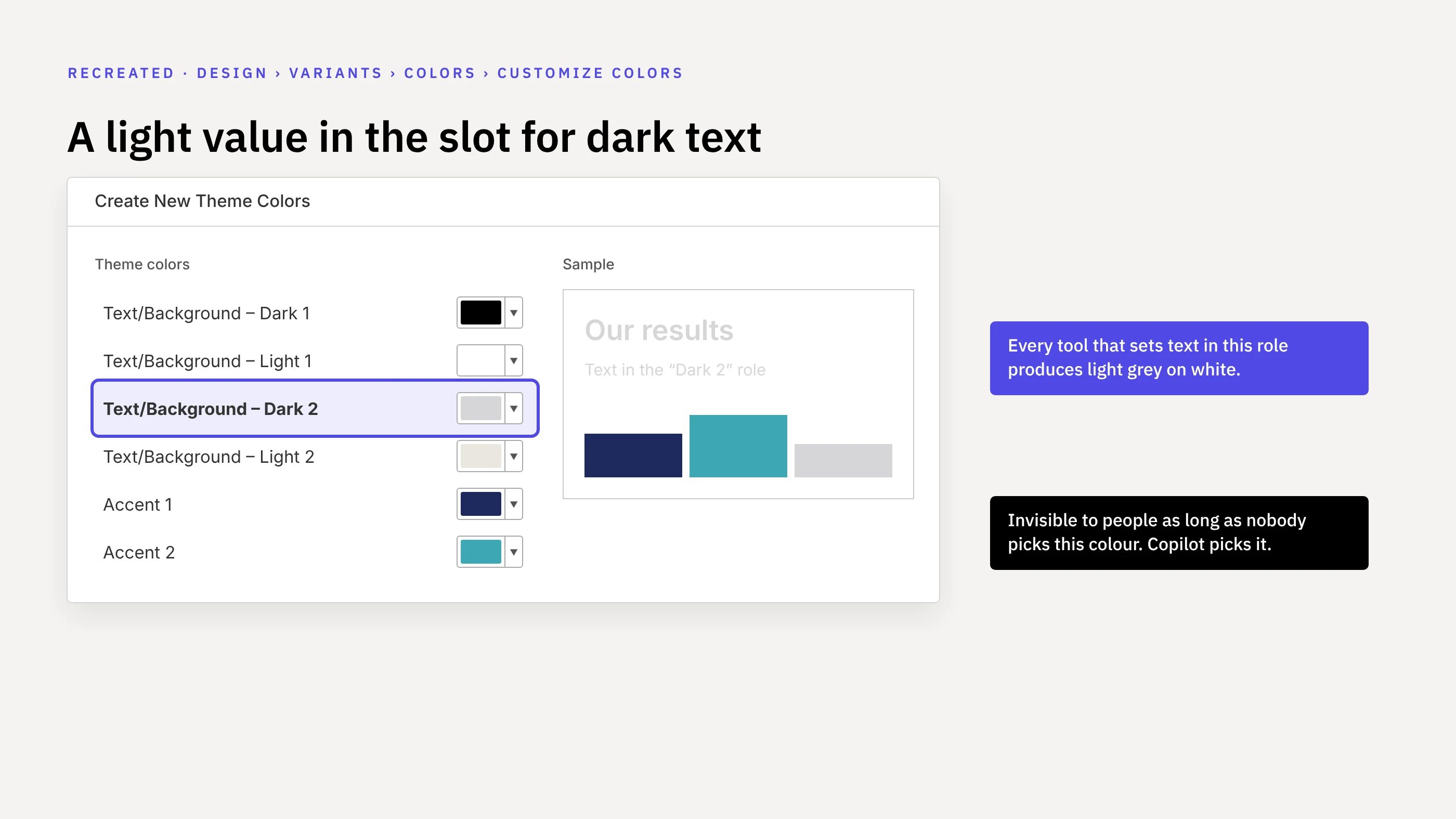
A theme with gaps. In the colour scheme, every colour has a role. If the slot for dark text holds a light grey, every tool that uses this role produces barely legible text on white. Fonts and colours hard-coded in individual layouts have a similar effect. The defaults for new shapes often use colours outside the palette as well, and these are exactly the ones that apply when Copilot creates its own shapes.
Free shapes instead of placeholders. Date, footnote or confidentiality label are often drawn as shapes, sometimes controlled by an add-in. Copilot can neither fill them nor address them directly.
A half-configured Brand Kit. The template has been uploaded, but nobody has made a deliberate choice about Strict brand adherence. The notes of the example slides are empty, and the design rules sit as a PDF on the intranet instead of as a skill in the Brand Kit.
The text test
Whether a presentation is readable for a language model can be checked in fifteen minutes. Take a current, important deck from your company. Give it to an AI tool your company has approved, and ask explicitly that it evaluate only the slide text and ignore images.
Then ask four questions without further context: What does the company offer? What sets it apart? Who is the offer for? Which figures back this up?
The model usually answers the first questions well, because the offer and positioning are on the slides as text. The last one is where it gets thin. Key figures, charts and timelines are often embedded as images, and the model sees only the slide title there. Where alt texts exist, PowerPoint has often generated them automatically. They then describe a landscape or “a screenshot”, but not half-year results.
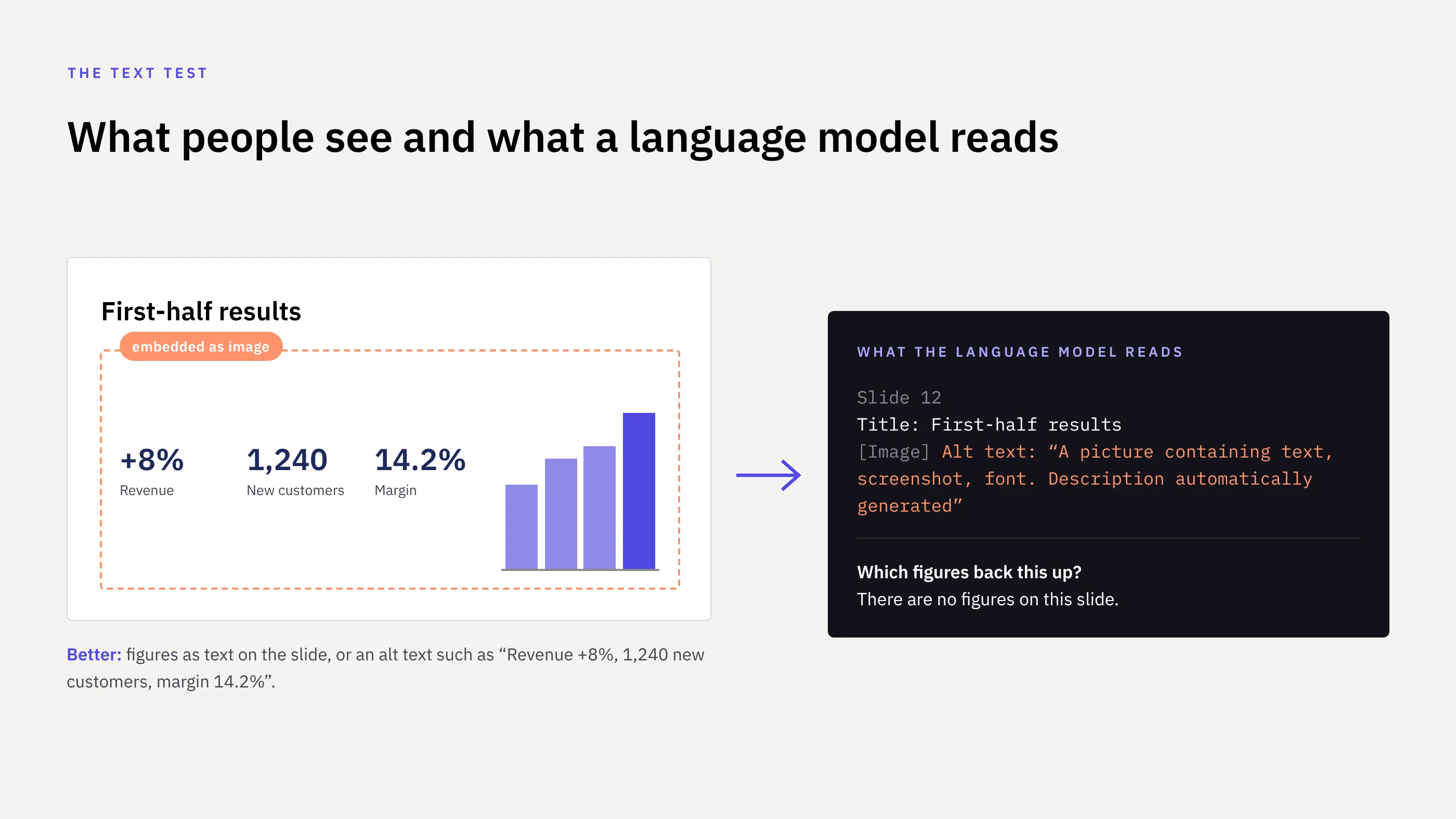
Screen reader users have known these gaps for a long time. What a screen reader needs, a language model needs too: real titles, a sensible reading order, figures as text and alt texts that convey the message. Decorative elements are marked as decorative so they don’t count as content. Accessibility and AI readability are therefore largely the same work.
A note on security: confidential presentations do not belong in public AI tools. For the test, use only approved tools or a deck that has already been published.
What helps
A rebuild of the template is rarely necessary. In most cases the design and the layout family hold up. The shortcomings lie in the structure and can be fixed there, ideally in order of impact.
Filled example slides are the biggest lever. Twenty to twenty-five slides with real, approved content are usually enough, ranging from sparse to text-heavy. Common slide types such as three-column slides or key-figure slides appear more than once. Every slide has a real title, and the notes say what the layout is meant for and what it should never be used for.
Theme and layouts come next. The colour slots are assigned correctly, and fixed values give way to theme values. Placeholders get unique names and a reading order with the title first, and the number of layouts drops to 40 at most.
In the Brand Kit, you set Strict brand adherence deliberately and store the design rules as a skill. If you use other AI tools alongside Copilot, you also get the same rules as a file.
The final step is proof. The same prompt runs several times before and after the retrofit, each time in a new chat. Only this comparison shows which measure achieves how much. Microsoft keeps changing how Copilot selects layouts, and the test records where things stand. How such a retrofit works in detail is described in our article “Reality Check – How Well Does Your PowerPoint Master Perform with Copilot, ChatGPT, Claude & Co.?”.
Checklist for your master
Ten points you can check without any additional tool. Every “no” is a starting point.
| No. | Area | Check | Where to check |
|---|---|---|---|
| 1 | Template and Brand Kit | Example slides show real content, each with a title | Normal view of the template |
| 2 | Template and Brand Kit | No dummy text, no sample names | Normal view of the template |
| 3 | Template and Brand Kit | Strict brand adherence is set deliberately, the notes of the example slides contain instructions | Brand Kit under Manage Brand Kits, Templates section; notes pane |
| 4 | Layouts | One master with no more than 40 layouts | View › Slide Master |
| 5 | Layouts | Every layout has a title placeholder | View › Slide Master |
| 6 | Layouts | The title is read first | Selection pane in the slide master, read from bottom to top |
| 7 | Theme | “Text Dark 2” is actually dark | Design › Variants › Colors › Customize Colors |
| 8 | Theme | Fonts come from the theme | The font box shows the suffix “(Headings)” or “(Body)” |
| 9 | Content | Key figures are text, charts are real charts | Click into the element: text can be selected, chart data can be edited |
| 10 | Content | Graphics have real alt texts, decoration is marked as decorative | Right-click › View Alt Text |
Frequently asked questions about Copilot and the Brand Kit
Why does Copilot design off-brand despite the Brand Kit?
The cause usually lies in the template itself. Copilot learns from the example slides first and only then turns to the layouts in the slide master. If the example slides are empty or the layouts lack order, Copilot carries exactly these weaknesses into every new slide.
What does the Strict brand adherence setting do?
When it is on, Copilot uses only the template’s layouts and adds no placeholders of its own. When it is off, Copilot has more freedom in the design and applies only the brand’s colours, fonts and assets. Only the owner and the Brand Managers of the Brand Kit can change the setting.
Does Copilot read instructions in placeholder text?
No. Text such as “three bullet points at most” only serves Copilot as formatting. Instructions belong in the speaker notes of the template slides or in the Brand Kit as a skill. Copilot only uses a skill, however, if someone selects it when creating a presentation.
How many example slides does a template need for Copilot?
In our experience, twenty to twenty-five slides with real, approved content are enough. Common slide types should appear more than once, and every slide needs a real title. Without example slides, Copilot falls back on the slide master, which according to Microsoft gives weaker results.
Does the template have to be rebuilt for Copilot?
Rarely. In most cases the design and the layout family hold up, and the shortcomings lie in the structure of the file. They can be fixed there, for example with filled example slides, correctly assigned colour slots and clearly named placeholders. Running the same prompt before and after the retrofit shows whether it worked.
How can I check whether a presentation is readable for language models?
Give a current deck to an approved AI tool and have it evaluate only the slide text. Then ask which figures back up the offer. If the answer is thin, the key figures usually sit in images without a meaningful alt text.
A look inside the file
Copilot designs only as well as the template shows it how. If you have set up the Brand Kit and libraries and still get unusable slides, you have usually not chosen a wrong setting. The template lacks the information Copilot is looking for.
Sources
- Microsoft Support: Keep your presentation on-brand with Copilot
- Microsoft Support: Manage template settings in your Brand Kit for Copilot in PowerPoint
- Microsoft Support: Use custom skills with Copilot in PowerPoint
- Microsoft Support: Use your organization's branding with Copilot in PowerPoint
Share this article

More than 20 years of experience with business presentations at executive and board level.


