Posters, banners and Teams backgrounds from PowerPoint templates – what works and what doesn't
More and more companies give their employees PowerPoint templates for posters, roll-ups, Teams backgrounds and social media graphics. It saves time and agency costs. Knowing the limits avoids nasty surprises at export and at the printer.

What are PowerPoint poster and banner templates?
PowerPoint poster and banner templates are files in which employees design formats other than presentations themselves: event posters, roll-ups, Teams backgrounds, certificates or social media graphics. Only the text and images can be changed.
In a company with thousands of employees, almost nobody has InDesign, but everyone has PowerPoint. Nobody wants to wait three days for the design team to produce a new Teams background. So PowerPoint becomes a design tool for everyone. Drop in the content, save as an image or PDF.
That is a sensible choice, as long as the templates are built for it. Special formats follow the same construction rules as a PowerPoint master for presentations: real placeholders, colours and fonts in the theme, meaningful names and a layout of its own for each variant. Pixel dimensions and print come on top.
Which formats export well from PowerPoint
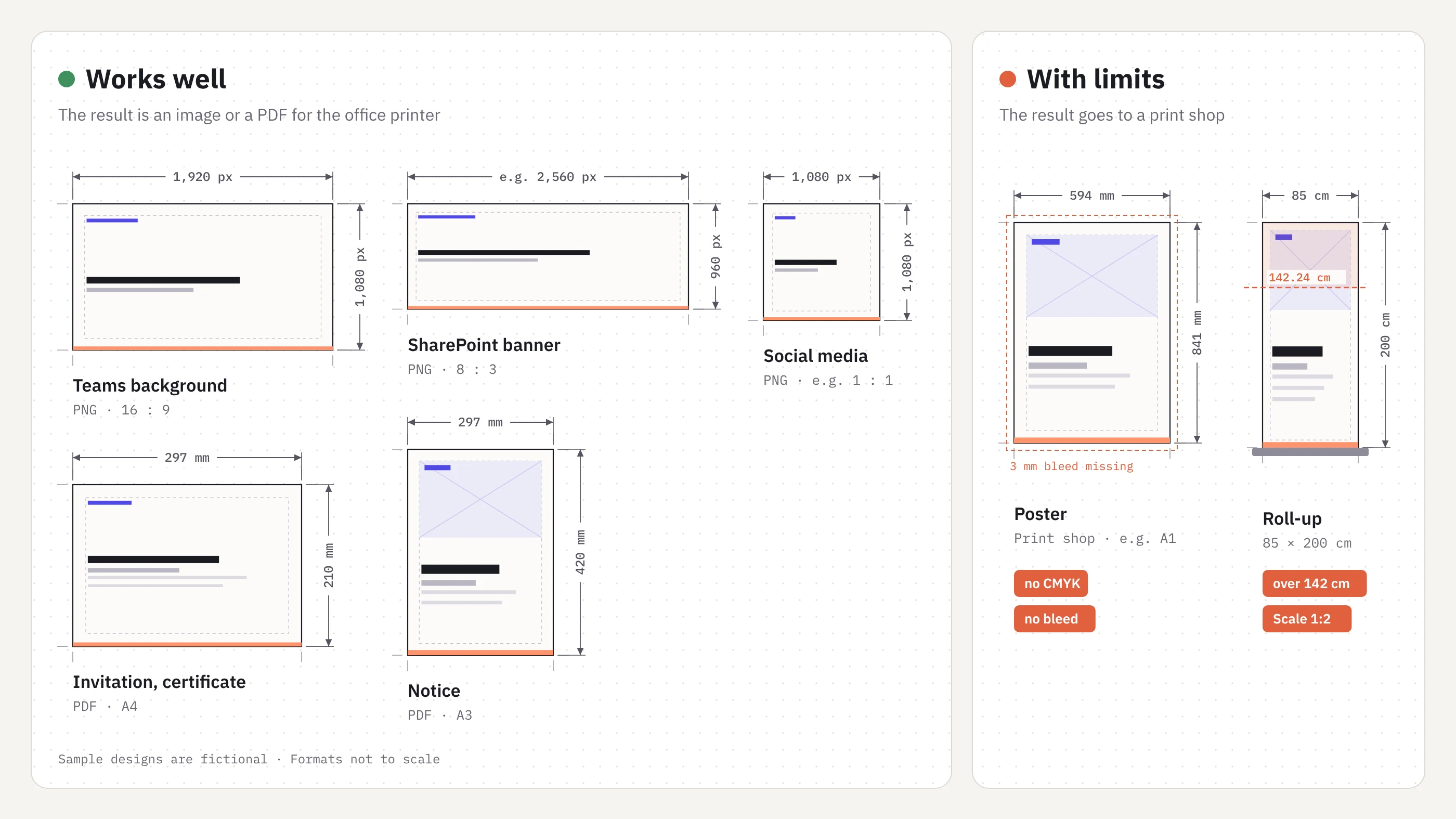
The best fit is any format that ends up as an image file or as a PDF for the office printer. That covers Teams backgrounds, banners for SharePoint pages, social media graphics, digital invitations and certificates.
The aspect ratio is what matters most. For SharePoint, Microsoft says images in a page's title area look best in landscape at 16:9 or wider, and the hero web part scales its height to a ratio of 8:3. A banner template whose slide size already matches that ratio saves cropping after export.
Every template also needs short instructions. They say which fields may be changed and at what size to save. For templates used only by people, the instructions sit on a slide of their own in the file. If the template is also stored in Copilot's brand kit, the instructions belong in a separate document, because Microsoft recommends keeping guidance content outside the template.
Export resolution: why the default export is often too small
According to Microsoft, PowerPoint saves a slide as an image at 96 dpi by default. For a widescreen slide of 33.87 × 19.05 cm, that produces 1,280 × 720 pixels. For a Teams background, that is on the small side.
There are two routes to more pixels. On Windows, the export resolution can be raised through a registry setting, usually a job for IT. From PowerPoint 2013 onwards, the only remaining limit is the total size of the image: 100 million pixels at most.
The second route needs no IT. The template gets a slide size that delivers exactly the required pixels at 96 dpi. For 1,920 × 1,080 pixels, that is 50.8 × 28.575 cm. Nobody has to change a setting, which suits templates used by many people.
Before roll-out, run a test export on users' machines, as settings and versions vary.
Teams backgrounds as a PowerPoint template
Teams backgrounds are among the most rewarding formats for a PowerPoint template. The result is a single image, and the requirements are documented. For backgrounds that IT provides centrally for the whole organisation, Microsoft specifies PNG or JPEG files of at least 360 × 360 and at most 3,840 × 2,160 pixels. Up to 50 such images can be uploaded.
Centrally provided backgrounds require a Teams Premium licence. Without it, there is a second route: employees upload their own backgrounds, which Microsoft says works regardless of licence. A good template serves both cases with the same file.
When designing, think about what stays visible during a call. The centre of the image is usually covered by the person in front of the camera, so the logo and any text belong near the edges. Any text in a background should be checked in a real call, as another participant sees it.
Posters and roll-ups for print: where PowerPoint reaches its limits
PowerPoint is only partly suited to professional print. It works with screen colours: according to Microsoft, its Colors dialog offers the RGB and HSL colour models, but not CMYK. PowerPoint has no bleed and no crop marks either. Printers need both for a poster that looks borderless after trimming.
A notice in A3 or a certificate in A4 comes out of PowerPoint in usable quality. When saving as PDF, choose "Standard" under "Optimize for", which Microsoft recommends for printing. "Minimum size" is meant for sending by email.
A print shop is a different matter. There, the colours are converted from RGB to CMYK, and strong brand colours can shift visibly in the process. Check with the print shop before ordering whether it accepts a PDF from PowerPoint as it is. For formats printed regularly and in large runs, a print-ready template made in a layout application is the safer option.
Large formats: the 142-centimetre limit
A PowerPoint slide can be at most 56 inches wide or high, which is 142.24 cm. A standard roll-up of 85 × 200 cm therefore doesn't fit on a slide.
The usual workaround is scale. The roll-up is set up at 42.5 × 100 cm, a scale of 1:2, and enlarged to twice the size for print. Text and shapes stay sharp as long as the file is passed on as a PDF. Photos, however, need twice the resolution in the template, because they are enlarged along with everything else.
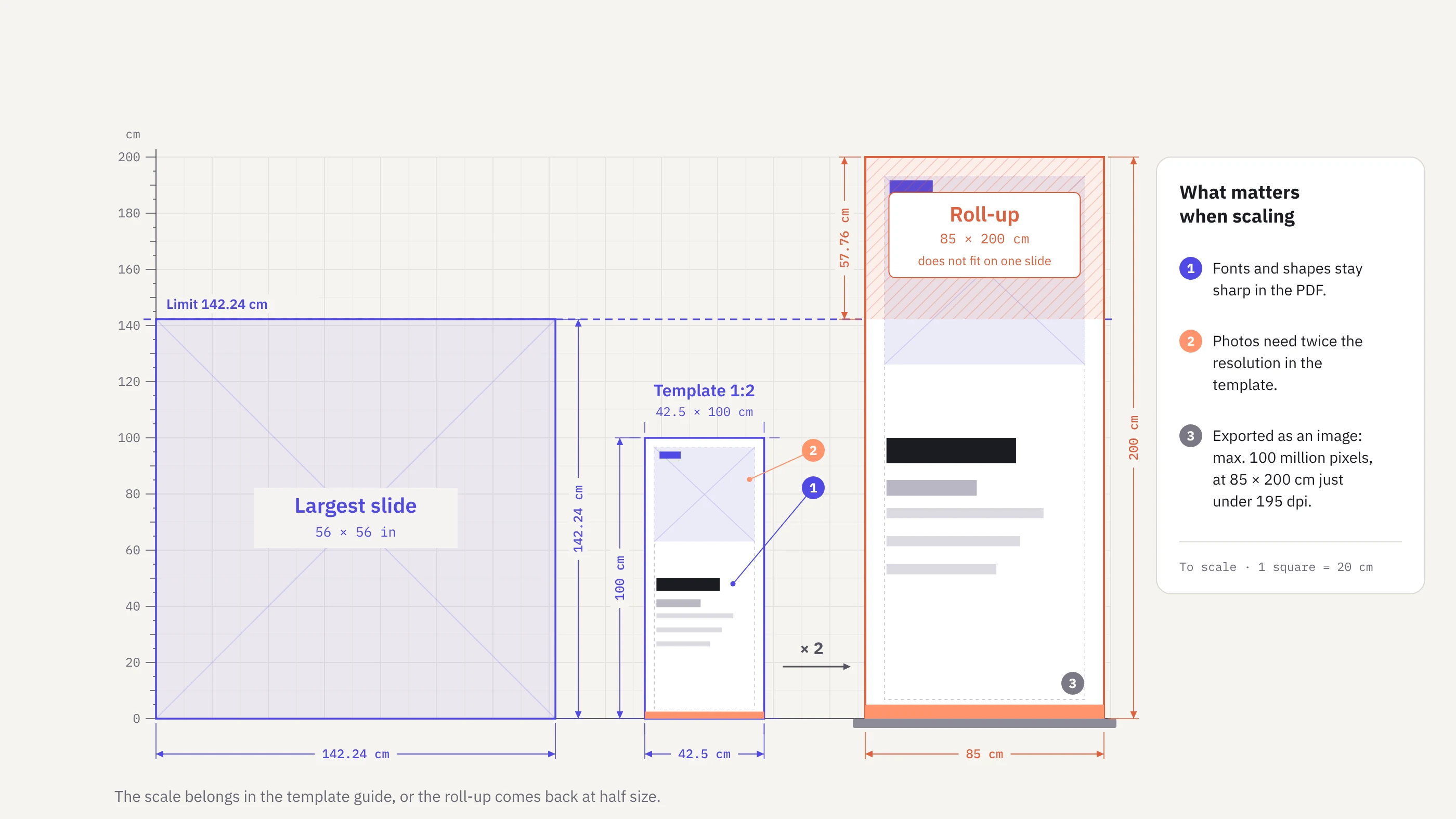
If the roll-up is exported as an image, PowerPoint's pixel limit adds a second constraint. At 100 million pixels, a final size of 85 × 200 cm works out at just under 195 dpi at most, whatever scale the template uses. Whether that is enough depends on viewing distance.
The scale belongs in the template's instructions. Otherwise someone will order a roll-up at half size.
Variants as layouts, sample slides as the model
Many templates deliver their variants as finished slides to copy. Users copy them and move elements around until the design gradually falls apart. It is more robust to set up each variant as its own layout in the slide master, for example portrait poster, landscape poster, poster with a large image and banner with a date. Users then pick the variant via "New Slide". The logo and brand elements sit on the layout, where nobody can move them by accident.
Sample slides are still needed, for another reason. According to Microsoft, Copilot looks first at a template's sample slides and only then at its layouts. It falls back on the slide master only if sample slides are lacking. So the sample slides should build on the layouts and show real, approved content.
The layouts protect the design from accidental changes. The sample slides show Copilot what a finished format looks like. How Copilot reads a template is covered in our article Copilot Is PowerPoint-Ready. Is Your Template?
Copilot and special formats: where AI helps
Copilot can fill well-built poster and banner templates. The benefit is smaller than with presentations. An event poster has little text, and the template sets the design. Copilot is most useful here for wording and translation, for instance when one poster is needed in six languages.
For templates stored in Copilot's brand kit, Microsoft sets out a few rules. Text belongs in placeholders, not in text boxes drawn by hand. Copilot also changes neither the font size nor the placeholder size. The template itself should therefore define what happens when text runs long, for example via the placeholder's autofit setting.
Microsoft does not describe how reliably Copilot handles unusual page sizes. That needs testing with real tasks before roll-out. How a master has to be built for AI tools is covered in our article Reality Check – How Well Does Your PowerPoint Master Perform with Copilot, ChatGPT, Claude & Co.?
Checklist for PowerPoint poster and banner templates
A template for special formats is ready for use when it meets the points below.
- Formats are separated by purpose: image file, office print, print shop and large format at scale.
- The slide size matches the aspect ratio and pixel dimensions of the target system.
- Every variant is its own layout in the slide master.
- The sample slides are built on those layouts and show real content.
- The logo and brand elements sit on the layout, not on the slide.
- All text sits in placeholders, and there is a rule for text that runs long.
- Instructions name the editable fields and the export size, and for large formats the scale. For templates in the brand kit, they sit outside the file.
- A test export on the users' machines delivers the expected pixels.
- Copilot is tested with real tasks, if employees will use it.
Frequently asked questions about PowerPoint poster and banner templates
Can you create posters for print in PowerPoint?
Yes, with limitations. For notices up to A3 from the office printer, PowerPoint works well, saved as a PDF with the "Standard" option. For a print shop, it lacks the CMYK colour model and has no way to set up bleed. Check in advance whether the print shop accepts it. For large runs, a template from a layout application is safer.
What is the maximum slide size in PowerPoint?
56 inches, or 142.24 cm, for both width and height. The smallest possible size is 1 inch, or 2.54 cm. Larger formats, such as a roll-up 200 cm tall, are set up at a reduced size and scaled up for print. The scale belongs in the template's instructions.
How do you set up a roll-up in PowerPoint?
With a custom slide size at scale, because 200 cm exceeds PowerPoint's limit. A roll-up of 85 × 200 cm is created as a slide of 42.5 × 100 cm and sent to the print shop as a PDF. Photos need twice the resolution in the template, because they are enlarged along with the layout.
How do you make a Teams background from a PowerPoint template?
The template uses a 16:9 aspect ratio and a slide size that produces the required pixels when saved as a PNG. At 96 dpi, 50.8 × 28.575 cm gives exactly 1,920 × 1,080 pixels. Backgrounds that IT distributes centrally require Teams Premium and can be no larger than 3,840 × 2,160 pixels.
Does a poster template need layouts or sample slides?
Both, for different jobs. Layouts in the slide master lock the logo and design in place. Sample slides show, with real content, what a finished poster looks like. According to Microsoft, Copilot looks at them first. Without them, Copilot falls back on the slide master.
Can Copilot fill poster and banner templates?
Yes, as long as the text sits in real placeholders. Copilot helps most with writing short copy and translating it into other languages. It doesn't change the font size or placeholder size, so the design stays with the template. How reliably Copilot handles special formats only becomes clear in a test with real tasks.
Special formats in your presentation system: what we offer
Special formats such as posters or Teams backgrounds are best built alongside the master for presentations. Colours and fonts are then already in the theme, and the special formats inherit them. We build the templates directly in PowerPoint, set slide sizes and export dimensions for your target systems and test every file with real content, and with Copilot if you wish. For formats headed to a print shop, we tell you plainly where PowerPoint reaches its limits.
You end up with templates your employees can use without the design team, each with short instructions. If you already have templates for special formats, we review them first and tell you what can be retrofitted and what should be rebuilt.
Sources
- Microsoft Support: Change the size of your PowerPoint slides
- Microsoft Learn: How to export high-resolution (high-dpi) slides from PowerPoint, 2024
- Microsoft Learn: IT Admins – Manage and create custom meeting backgrounds for Teams meetings, 2025
- Microsoft Support: Image sizing and scaling in SharePoint modern pages, 2026
- Microsoft Support: Choosing colors in the Colors dialog box
- Microsoft Support: Save PowerPoint presentations as PDF files
- Microsoft Support: Use your organization's branding with Copilot in PowerPoint, 2026
Share this article


